
Table of Contents
A printer that skips labels, produces faded text or prints barcodes that will not scan can quickly hold up packing and dispatch.
Most thermal label printer problems are caused by the printer settings, calibration, label roll, ribbon or a build-up of dirt. Some can be corrected in a few minutes. Others show that the labels do not match the printer or application.
Use the quick guide below to find the most likely cause before changing your settings.
Quick Label Printer Troubleshooting Guide
| Problem | Likely cause | First check |
|---|---|---|
| Problem Blank labels | Likely cause Wrong label type or loading direction | First check Check the print method and printable side |
| Problem Faded print | Likely cause Low darkness or fast print speed | First check Clean the printhead and print a test |
| Problem Dark or blurred print | Likely cause Too much heat | First check Reduce the darkness setting |
| Problem Skipped labels | Likely cause Sensor or calibration issue | First check Select the correct media type and recalibrate |
| Problem Misaligned print | Likely cause Incorrect label dimensions | First check Check the template and printer settings |
| Problem White lines | Likely cause Dirty or damaged printhead | First check Clean the printhead |
| Problem Ribbon wrinkles | Likely cause Poor ribbon alignment | First check Reload and centre the ribbon |
| Problem Barcode will not scan | Likely cause Poor print quality or design | First check Test darkness, speed and barcode spacing |
| Problem Labels jam | Likely cause Incorrect roll specification | First check Check the core and roll diameter |
| Problem Labels peel away | Likely cause Unsuitable adhesive | First check Test the label on the actual surface |
1. Why Is My Label Printer Printing Blank Labels?
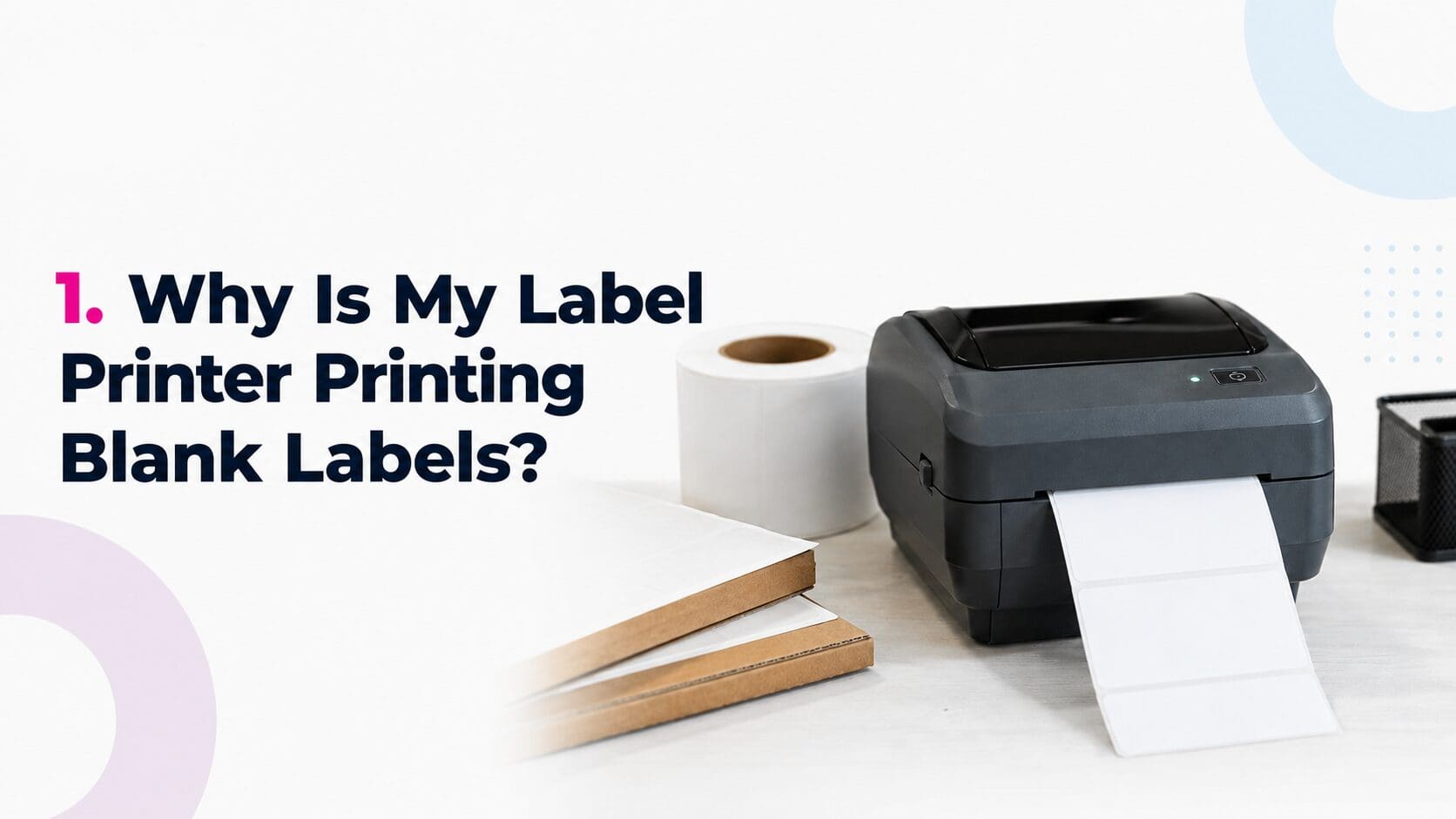
A blank label often means the printer is set up for the wrong printing method.
Direct thermal labels contain a heat-sensitive coating and do not need a ribbon. Thermal transfer labels need a ribbon to create the printed image. Selecting the wrong setting can result in blank labels.
The label roll may also be loaded with the printable surface facing away from the printhead.
What to check
- Confirm that the printer is set to direct thermal or thermal transfer
- Check that the labels are loaded in the correct direction
- Make sure a ribbon is fitted for thermal transfer printing
- Confirm that the ribbon’s coated side faces the label
- Check the printer driver and label software
- Inspect the printhead for dirt or damage
Try the scratch test
Scratch the label firmly with a fingernail or blunt object. A dark mark usually shows that it is direct thermal material.
If no mark appears, the label may be designed for thermal transfer printing and require a ribbon.
2. Why Is the Print Faded or Too Light?
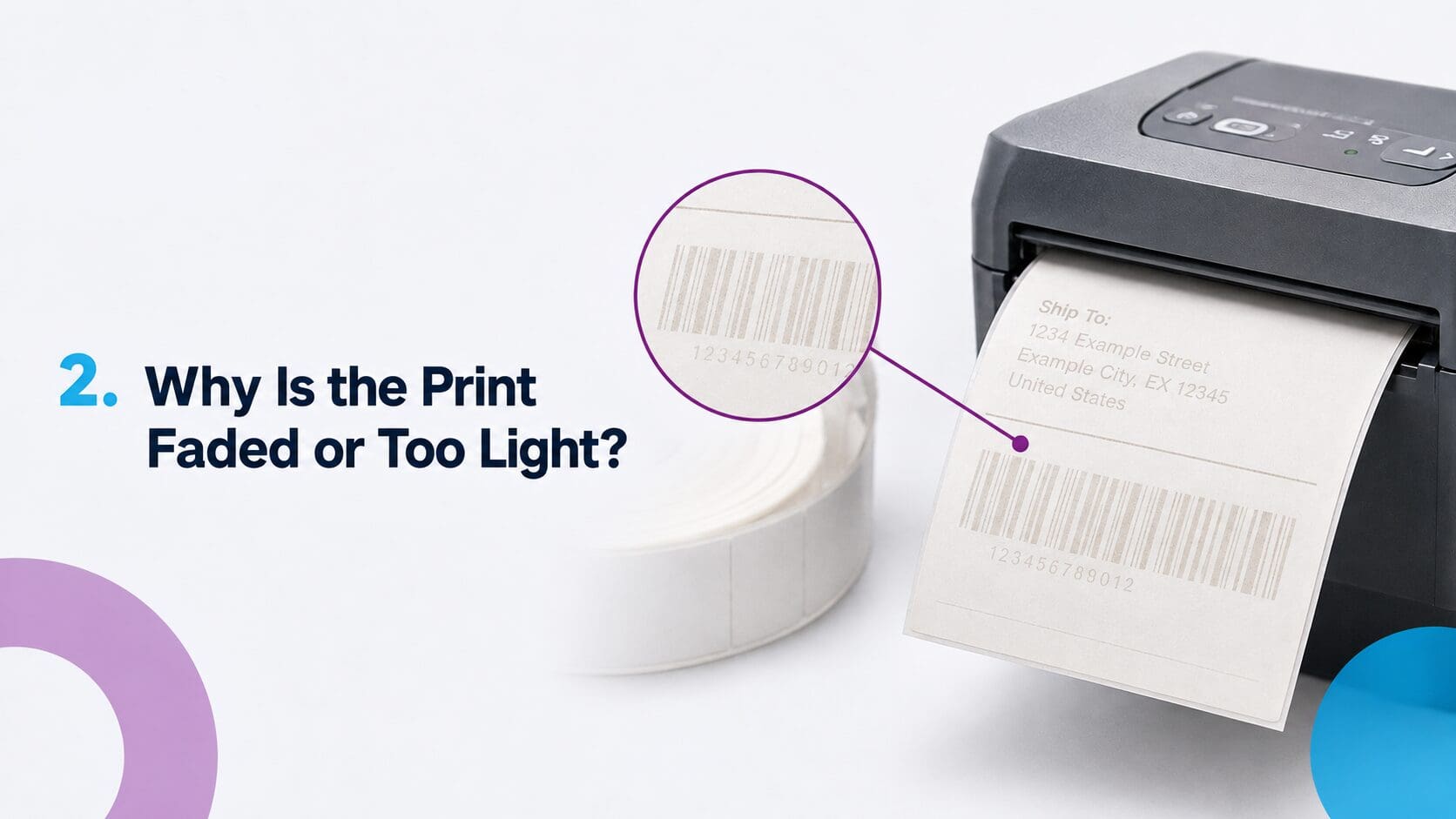
Light text and faded barcodes are common signs that the printhead is not applying enough heat. The printer may also be running too quickly for the chosen material.
For thermal transfer printing, the ribbon and label surface must work together. A ribbon that prints well on uncoated paper may perform poorly on a synthetic label.
How to improve light print
- Turn off the printer and allow the printhead to cool.
- Clean it using the method recommended by the manufacturer.
- Print a test label.
- Increase the darkness setting in small steps.
- Reduce the print speed if the result remains faint.
- Check the ribbon and label material are compatible.
Use the lowest darkness setting that produces a clear result. Excess heat can reduce printhead life and make barcodes harder to scan.
3. Why Is the Print Too Dark or Blurred?
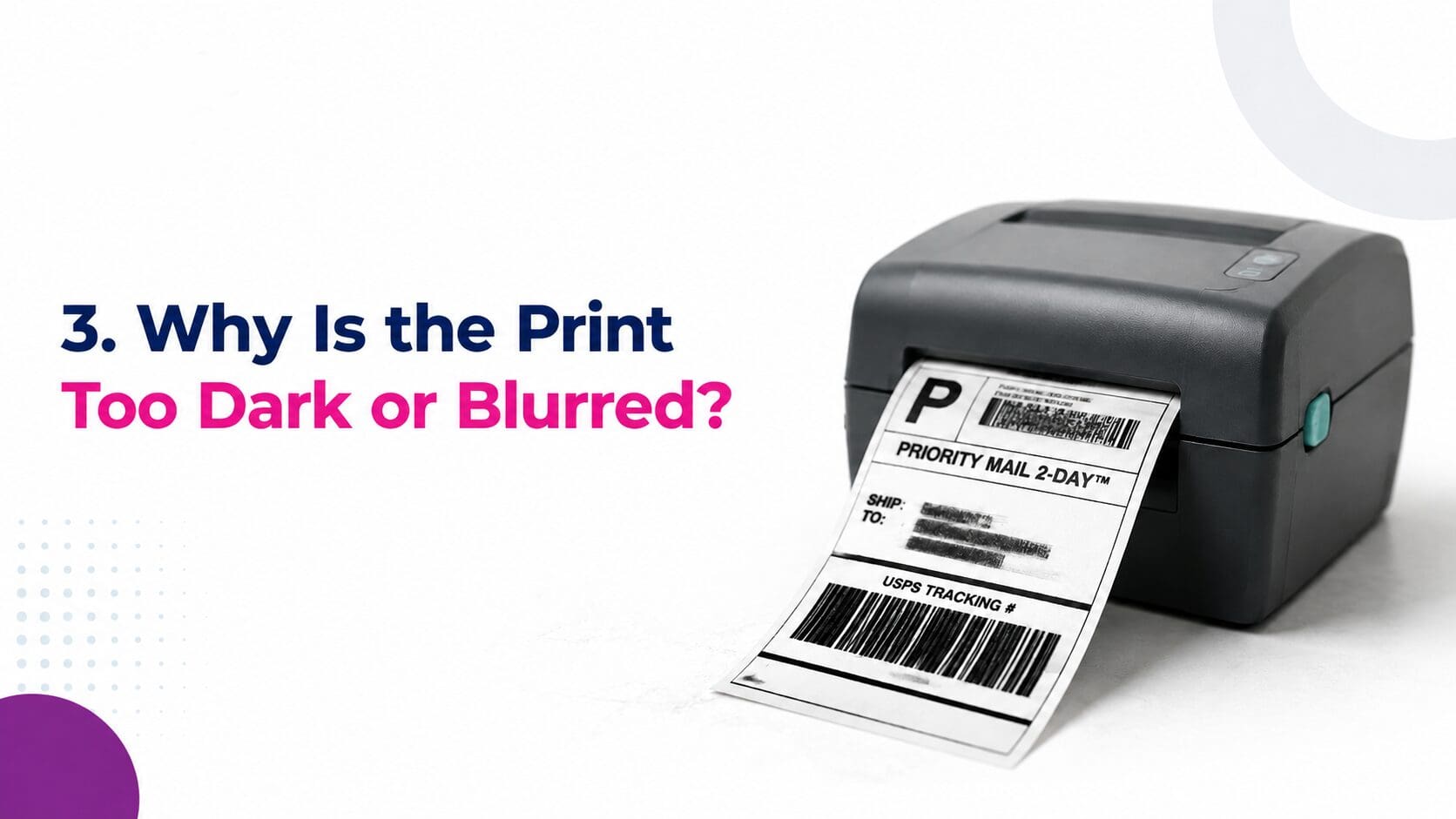
A high darkness setting can cause small text to fill in and barcode lines to spread. The print may look bold, but its edges will be less clear.
This fault is sometimes called bar growth when it affects a barcode.
How to correct dark print
- Reduce the darkness or heat setting
- Lower the printhead pressure if the printer allows it
- Test at a slower print speed
- Check that the ribbon suits the label surface
- Print a barcode test after each adjustment
Do not change several settings at once. Make one adjustment, print a few labels and compare the results.
4. Why Does the Printer Skip Labels?
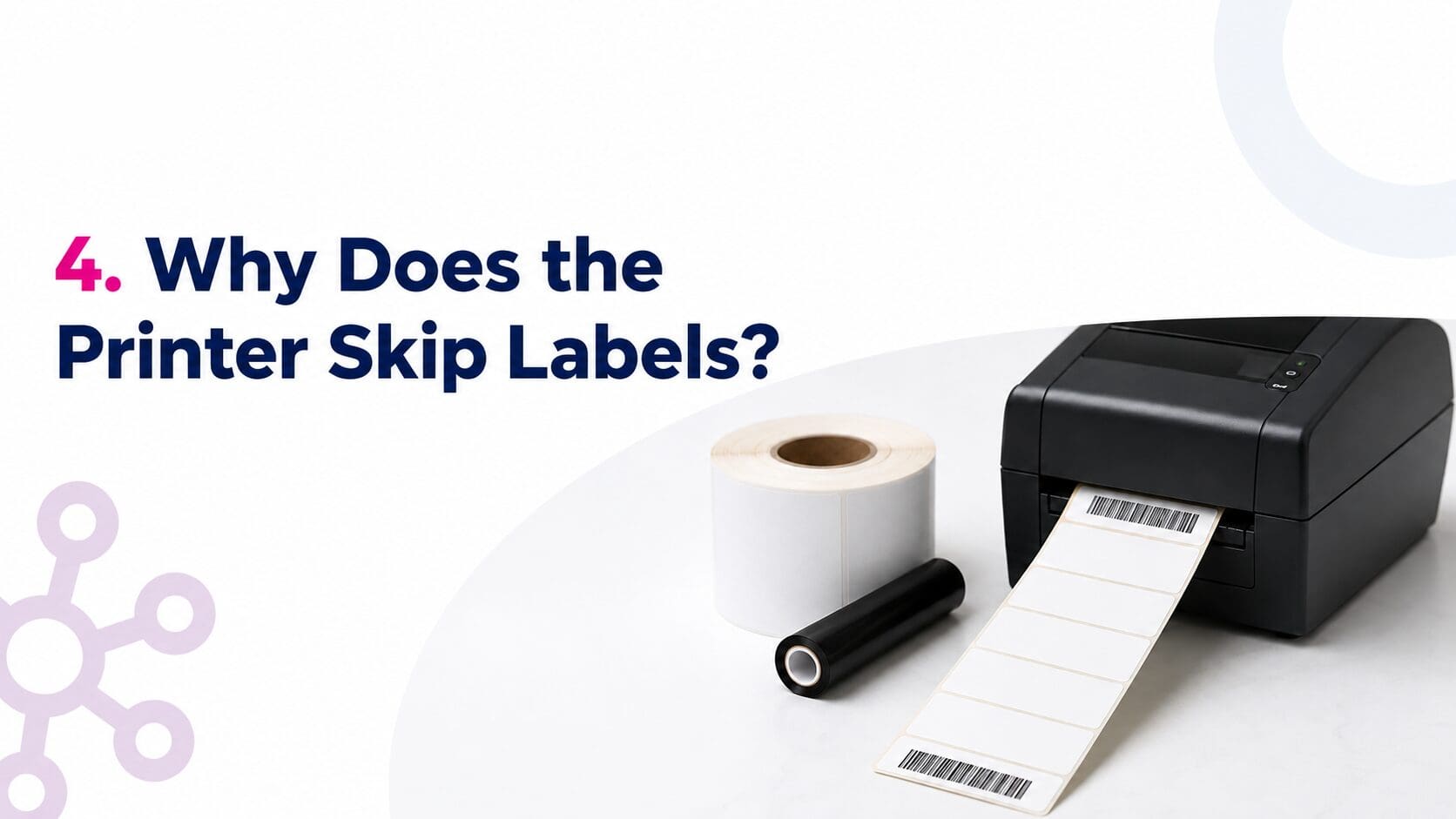
Thermal printers use a sensor to find the beginning and end of each label. Depending on the roll, this may be detected through a gap, notch or black mark.
If the sensor cannot detect these points, the printer may feed several blank labels, stop in the wrong place or print across a gap.
Common causes
- Printer has not been calibrated
- Wrong media type is selected
- Sensor is not positioned over the black mark or gap
- Label dimensions are incorrect
- Sensor is covered by dust or adhesive
- Roll guides are not holding the labels straight
- Gaps or black marks are inconsistent
How to stop labels from skipping
Check the printer setting matches the roll type. Select gap, notch, black mark or continuous media as needed.
Load the roll correctly, position the sensor and run the printer’s calibration process. Some printers will feed several labels during calibration. This is normal.
5. Why Is the Design Printing in the Wrong Position?
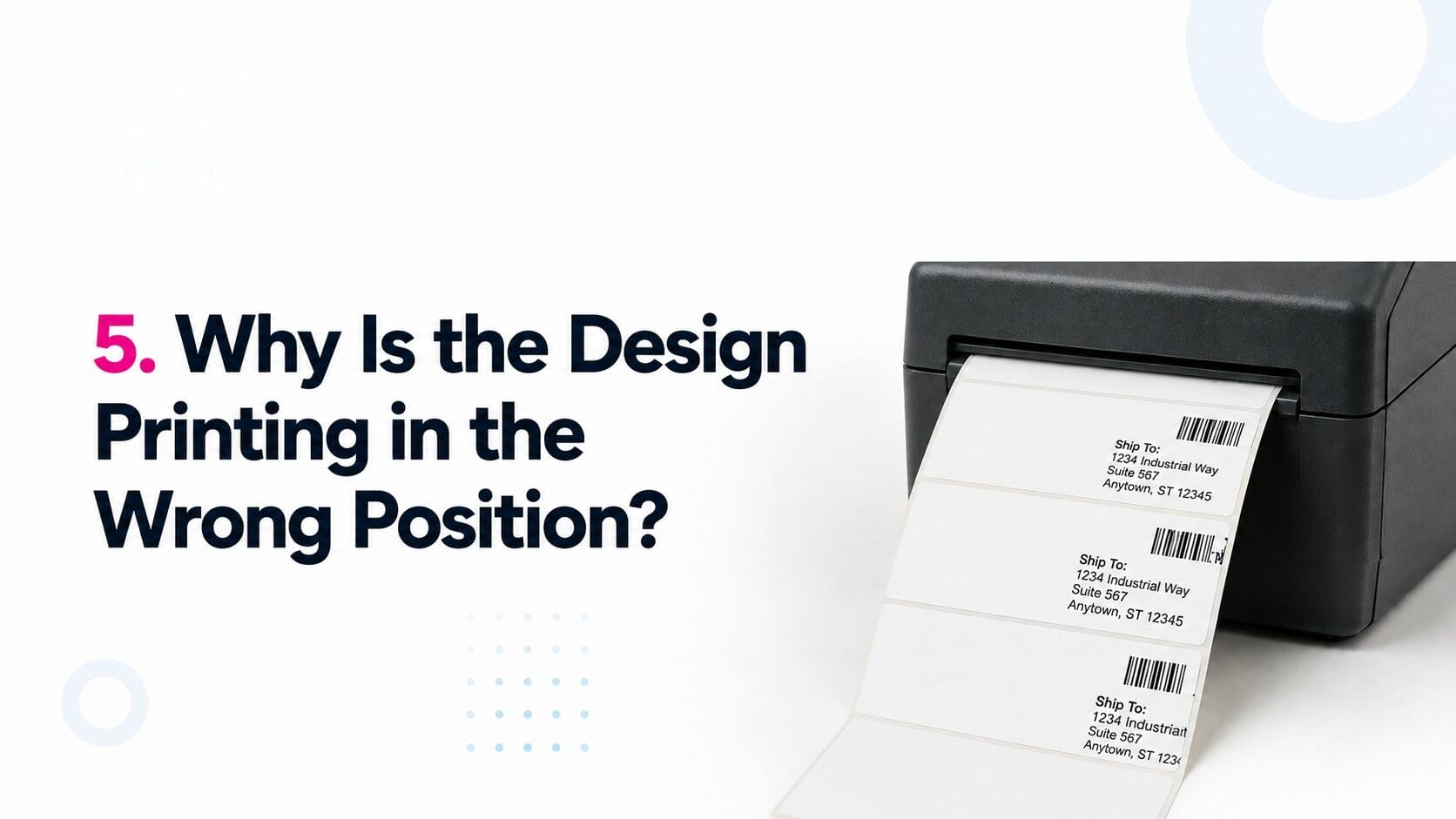
Text and barcodes may print too high, too low or partly outside the label. The position may also move slightly with each print.
This usually comes from incorrect dimensions, poor calibration or movement in the media path.
Check these settings
- Label width and height
- Gap between each label
- Page size in the label software
- Page size in the printer driver
- Print orientation
- Top and left position
- Roll guide position
- Media type
6. What Causes White Lines Through Printed Labels?
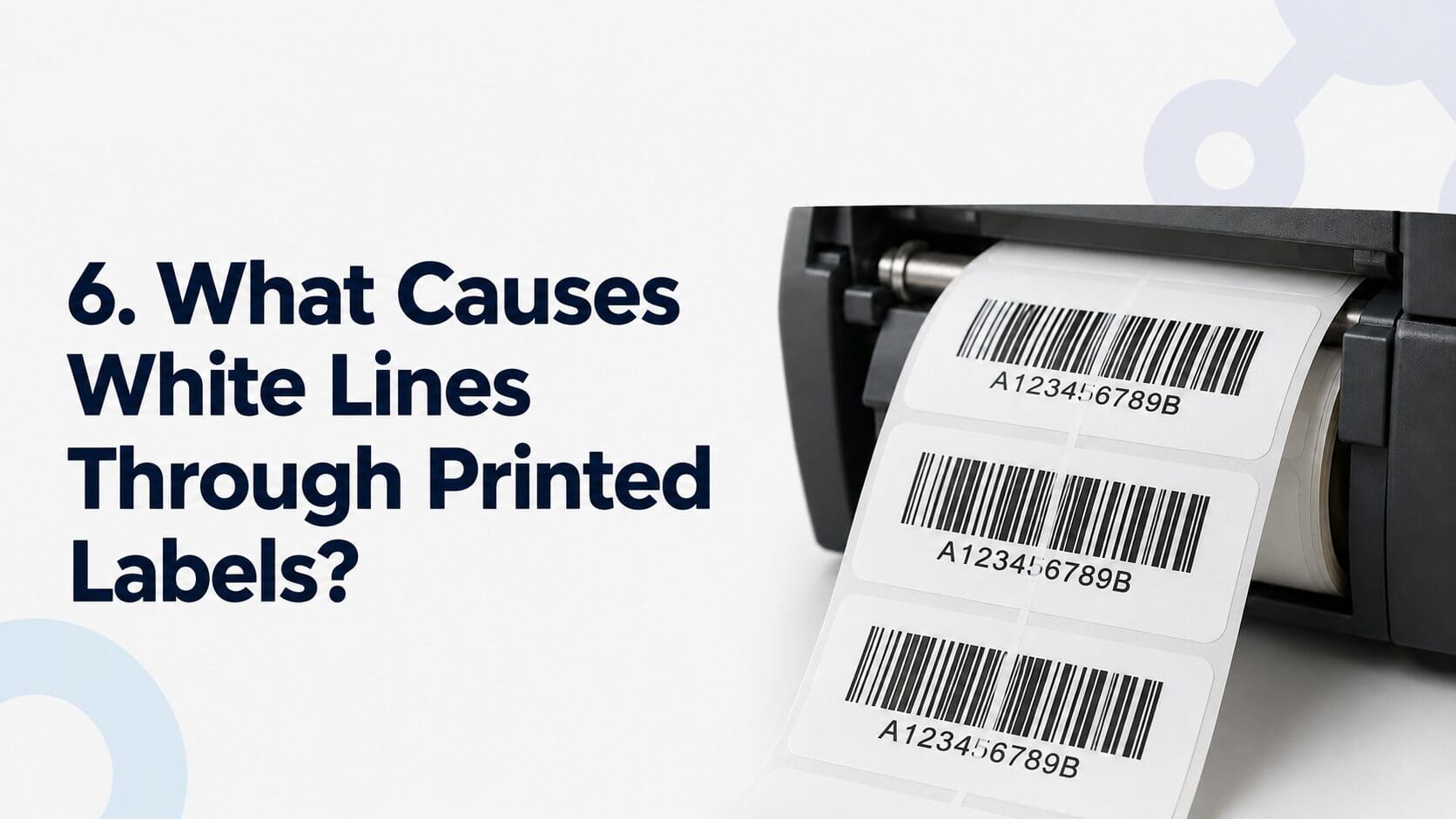
A thin white line running down every label often points to dirt on the printhead. Dust, ribbon residue or adhesive can prevent part of the head from making clean contact.
If the line stays in exactly the same position after cleaning, a printhead element may be damaged.
What to do
- Switch off the printer
- Allow the printhead to cool
- Clean it using an approved cleaning method
- Check the platen roller for dirt or adhesive
- Print another test label
Never scrape the printhead with a blade or sharp tool. If cleaning does not remove the line, arrange an inspection before replacing the part.
7. Why Is the Thermal Transfer Ribbon Wrinkling?
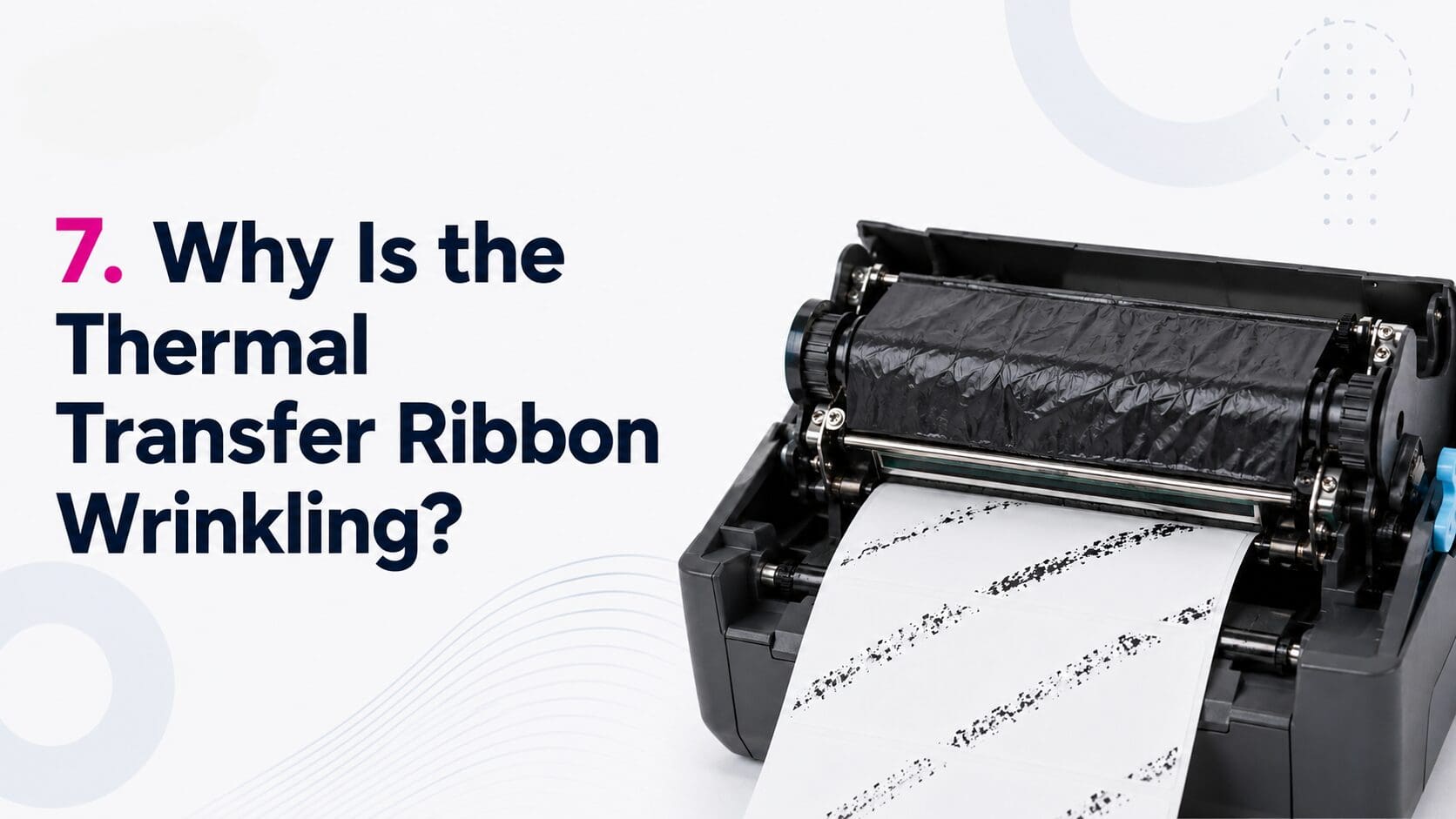
Ribbon wrinkles can leave diagonal lines, blank sections or uneven print across the label.
The ribbon must run smoothly from the supply spindle, under the printhead and onto the take-up spindle. Poor alignment or uneven pressure can cause it to crease.
Common ribbon issues
- Ribbon is not loaded evenly
- Ribbon is too narrow
- Supply or take-up tension is incorrect
- Printhead pressure is uneven
- Label and ribbon rolls are not aligned
- Darkness setting is too high
- Ribbon does not suit the label material
How to fix ribbon wrinkles
Reload the ribbon and make sure it is smooth before closing the printhead. It should cover the full print area and normally be slightly wider than the label material.
Check the ribbon and labels follow the correct path. Adjust tension or pressure only if your printer supports those changes.
8. Why Will the Printed Barcode Not Scan?
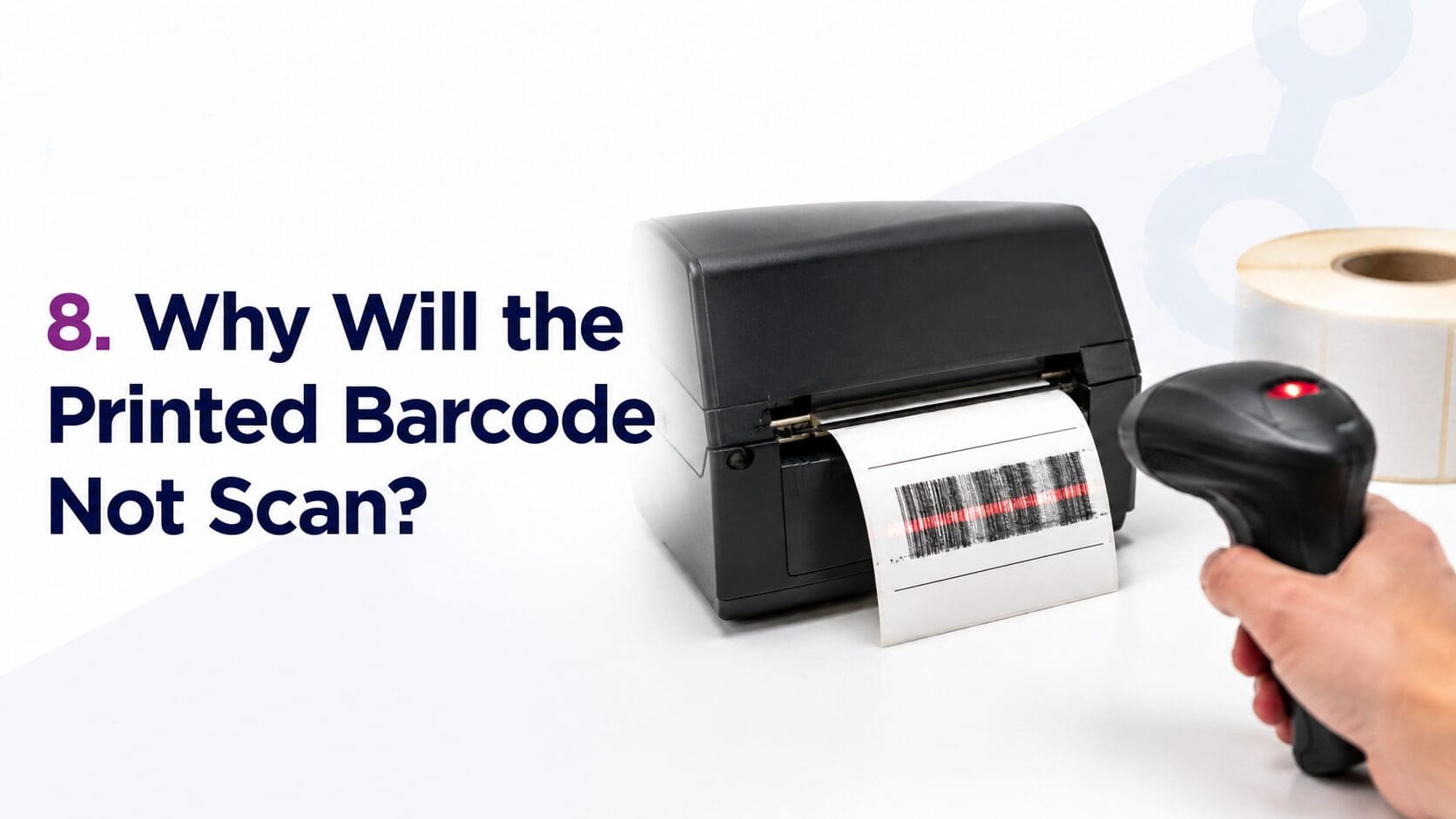
A barcode needs more than dark lines. It also needs sharp edges, clear contrast and enough empty space around it.
A barcode may fail if it is too small for the printer resolution or printed too close to the edge of the label.
Check the barcode
- Print is clear and not smudged
- Bars have sharp edges
- Barcode is not stretched or compressed
- There is clear space around every side
- Label surface is clean and flat
- Barcode is not placed over a corner or join
- Correct barcode type is being used
- Data contained in the barcode is correct
Test the finished label with the scanners used in your warehouse, shop or dispatch area. A phone camera is not always a suitable test for workplace scanners.
9. Why Are Labels Jamming in the Printer?
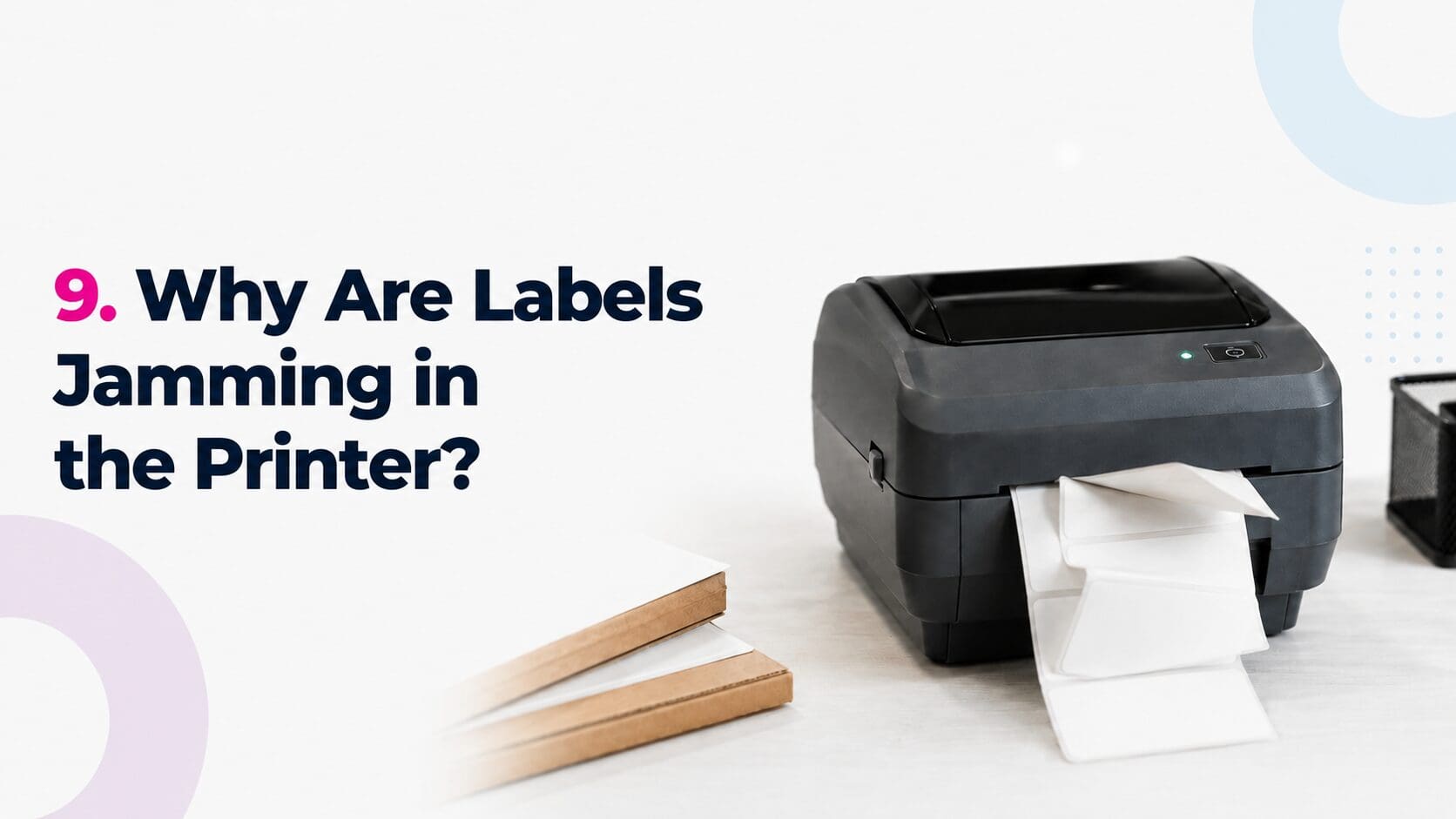
A jam may be caused by the wrong roll size, poor loading or labels lifting from the backing paper.
Adhesive can also collect on the guides and rollers. This may pull labels away from the liner and block the media path.
What to check
- Core diameter fits the printer
- Roll is within the maximum outer diameter
- Label width is supported
- Roll is loaded through the correct path
- Guides are not too tight
- Labels are not lifting at the edges
- Adhesive has not leaked onto the liner
- Platen roller is clean and undamaged
Do not pull a jammed label through the printer with force. Remove the roll carefully and check for small pieces of label material inside the mechanism.
10. Why Are Printed Labels Peeling Off?
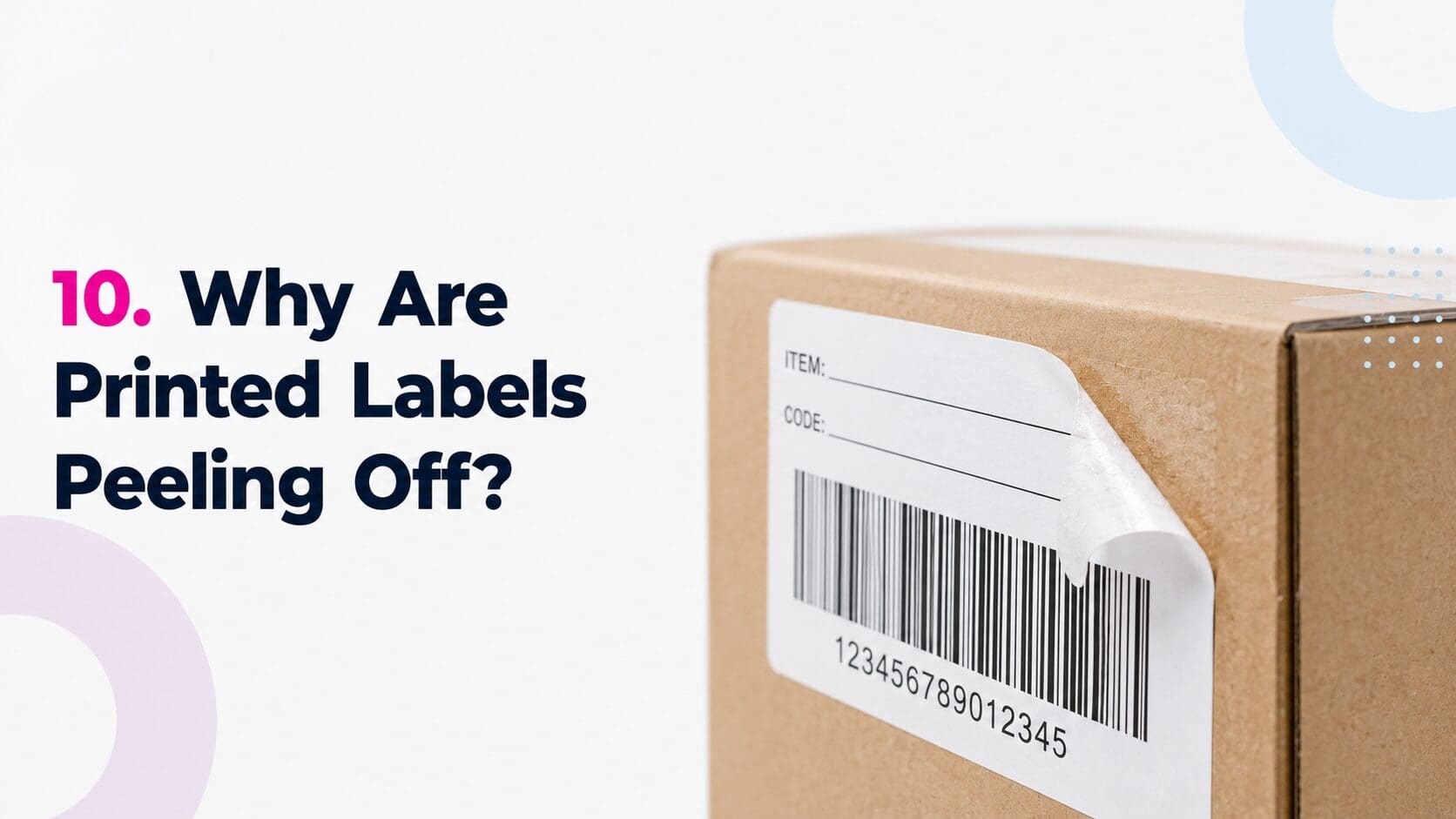
A label can print perfectly and still fail after it is applied. This normally means the adhesive does not suit the surface or working conditions.
Cardboard, glass, metal and plastic can all require different adhesive properties. Cold, moisture, dust, oil and curved surfaces can also affect the bond.
How to improve label adhesion
- Clean and dry the surface
- Apply the label within its recommended temperature range
- Press firmly across the complete label
- Allow time for the adhesive bond to build
- Use a freezer adhesive for suitable cold applications
- Select a flexible material for small or curved containers
- Test samples on the real product
Remember that application temperature and service temperature are not the same. A label may need to be applied at room temperature before entering chilled or frozen storage.
When Should You Contact a Label Supplier?
Speak to a label supplier if the printer works with one roll but not another. This usually points to a difference in the roll specification rather than a mechanical fault.
Have these details ready:
- Printer make and model
- Label width and height
- Core diameter
- Maximum roll diameter
- Number of labels per roll
- Direct thermal or thermal transfer printing
- Gap, notch or black mark
- Label material
- Adhesive type
- Ribbon size and grade
- Photograph of the problem
Struggling to Find the Right Packaging Solution?
Let Hub Packaging help you find the right solution. Our dedicated customer service team is here to support you!
📞+44 (0)28 4175 4977
📧 sales@hub-packaging.com
🌐 https://www.hub-packaging.com
We’re here to make packaging work better for your business.